
Brand DNA
What OptiQube knows about your brand, how it is used in every creative, and how to correct it.
Your Brand DNA is what every creative starts from: your logo, colours, fonts, style, audience and tone. OptiQube reads it from your website when you add a store, and you can correct anything. An edited value always wins over the scan, and every new creative uses it.
Open your Brand DNA
Any of these takes you there:
- Click the store name in the top-left corner → Brand DNA.
- Connections → Open Brand DNA.
- Change on the store bar at the top of the Inspiration library.
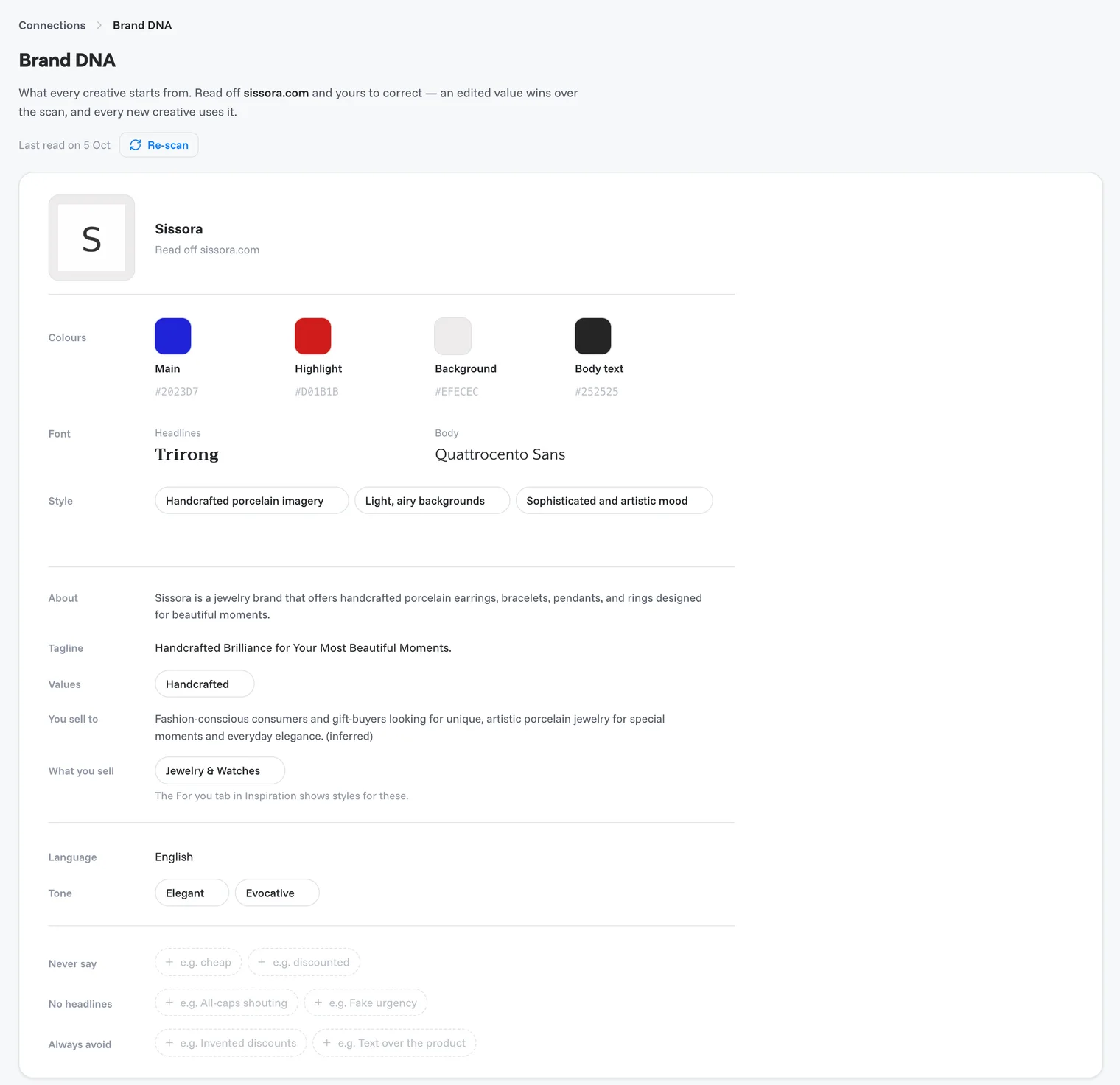
What to check
Logo. If OptiQube could not find your logo, upload it with Upload logo. Styles that place your logo on the creative skip it when there is none, and Ideas to try reminds you with We couldn't find your logo. Once uploaded, every round from then on carries it. You can also add a second logo.
Colours and fonts. Main, Highlight, Background and Body text colours, plus the fonts for headlines and body text. Click Add to add more colours.
Style. A few words describing your look, such as Bold and modern or Clean, sharp lines.
About, Tagline and Values. What your brand stands for, in your own words.
You sell to and What you sell. Your audience and product range. What you sell also decides which styles the For you tab of the Inspiration library shows first.
Language and Tone. The language of your ad copy, and how it should sound.
Never say, No headlines and Always avoid. Your guardrails:
| Field | Example |
|---|---|
| Never say | cheap, discounted |
| No headlines | All-caps shouting, Fake urgency |
| Always avoid | Invented discounts, Text over the product |
Edit your Brand DNA
Click any value to change it.
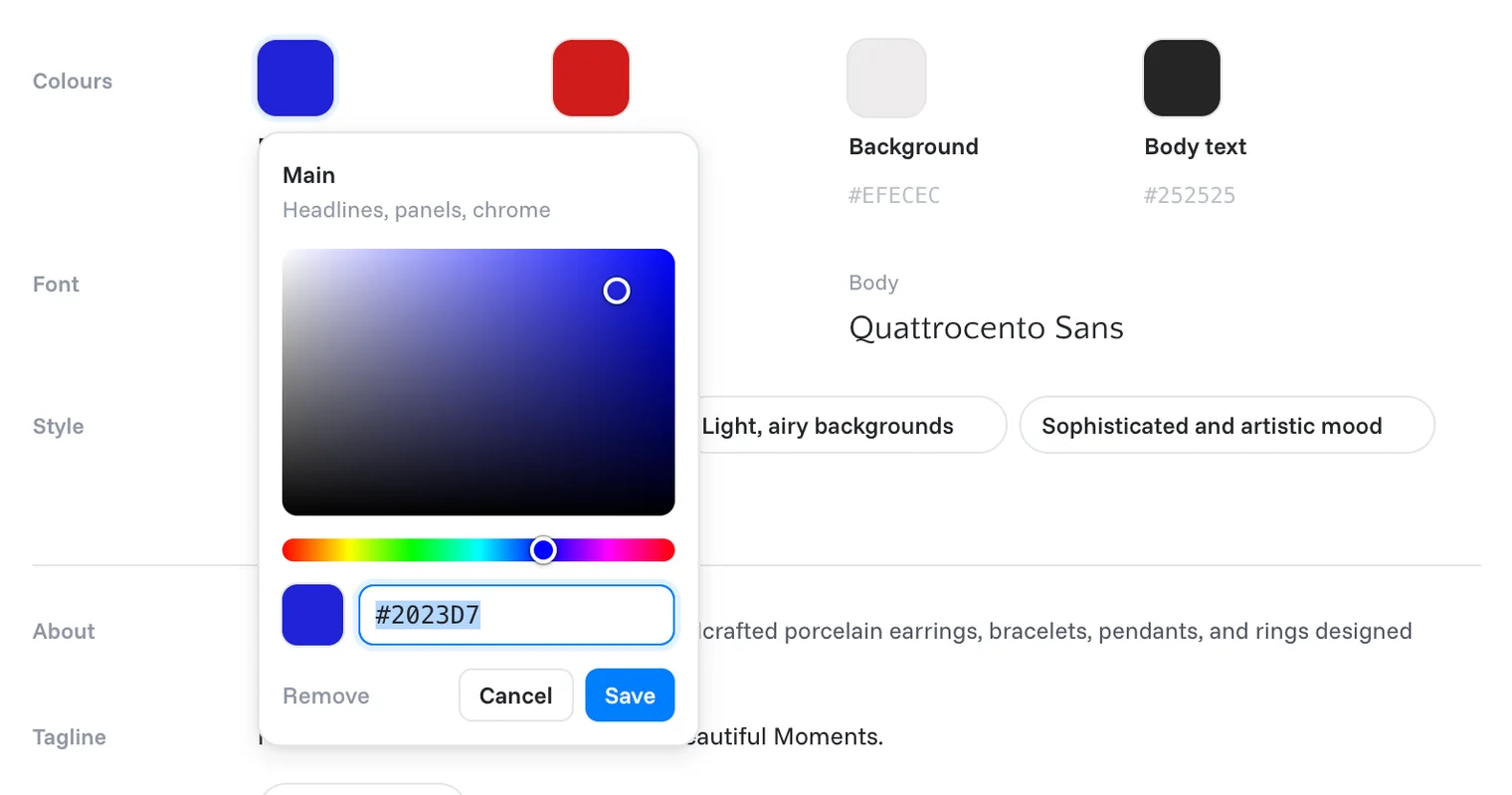
Colours. Click a colour to open the picker. It shows what the colour is used for (for example Main: headlines, panels, chrome). Pick a shade or type a hex code, then click Save. Remove deletes the colour.
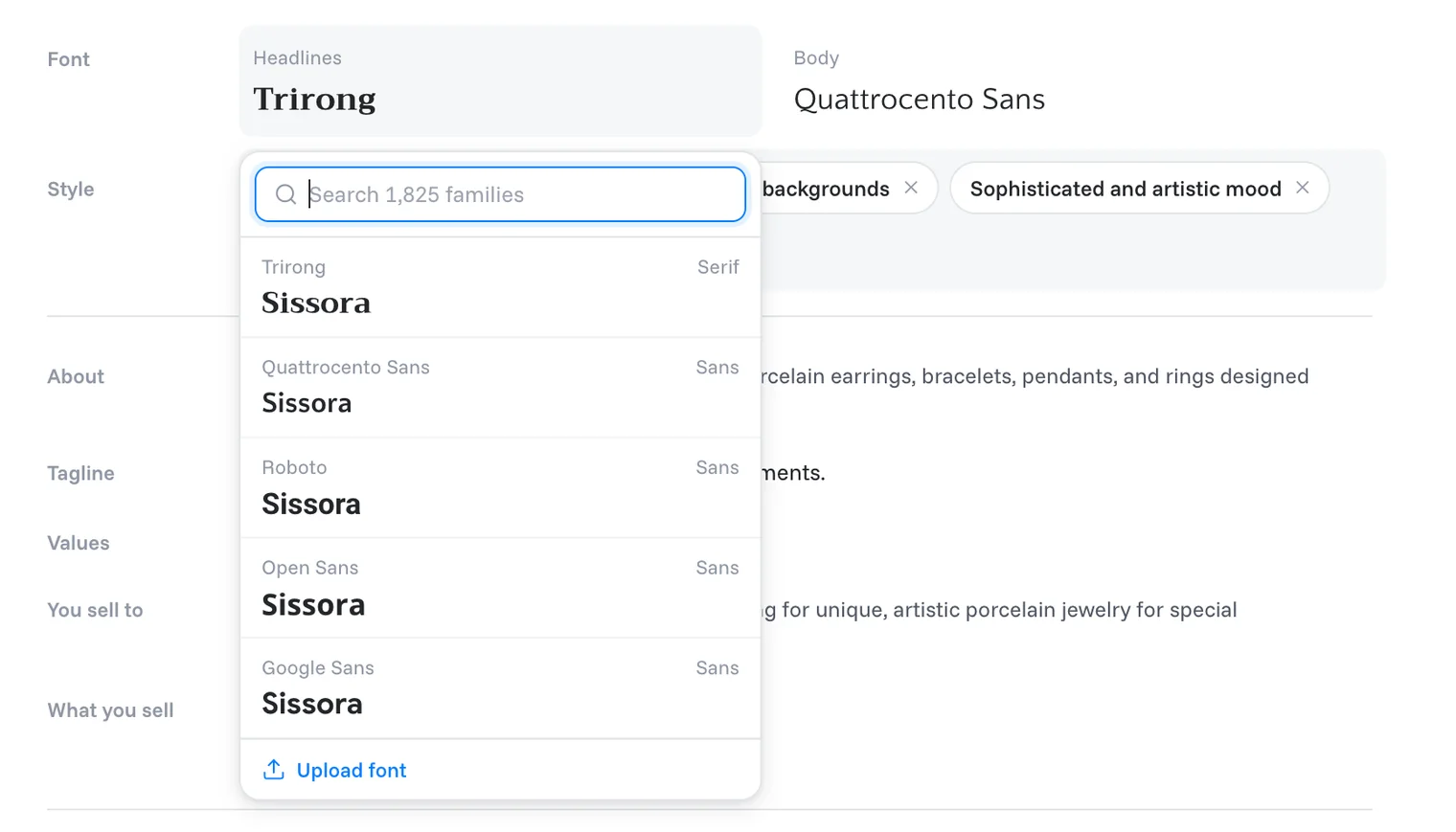
Fonts. Click a font to open a searchable list of font families, each previewed with your brand name. Pick one, or click Upload font to use your own.
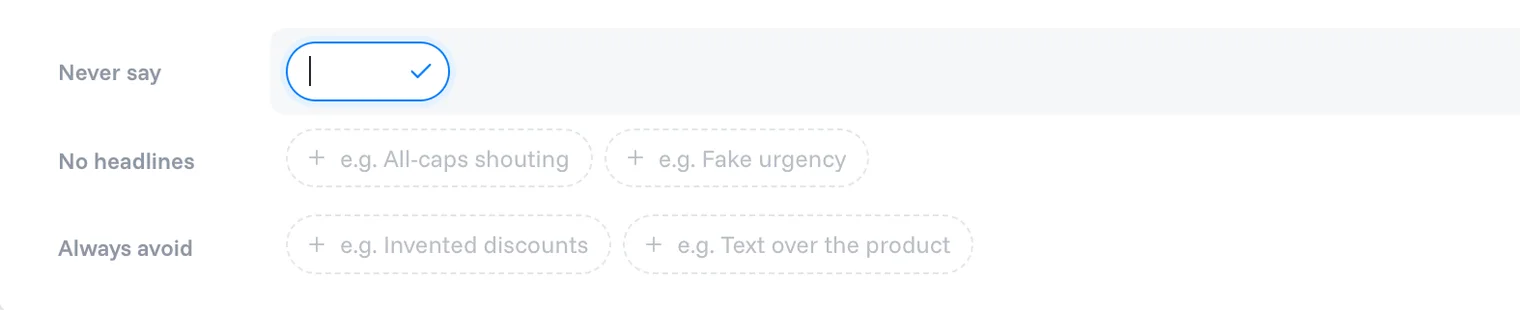
Tags (Style, Values, Tone, Never say, No headlines, Always avoid). Click + to add one, type it and confirm with the tick. Click × on a tag to remove it.
Keep it up to date
Changed your website, logo or colours? Click Re-scan at the top of the page. The date next to it shows when OptiQube last read your site.
Note
Every new creative uses your Brand DNA as it is at that moment, so a change shows up in the next round you start.
Related articles
Still need help?
Our team answers every message.