
Password and email address
Change your password, or move your account to a new email address safely.
Both are under Settings → Security.
Note
Signed up with Google? Then you have no password section here, and you confirm an email change with Confirm with Google instead of your current password.
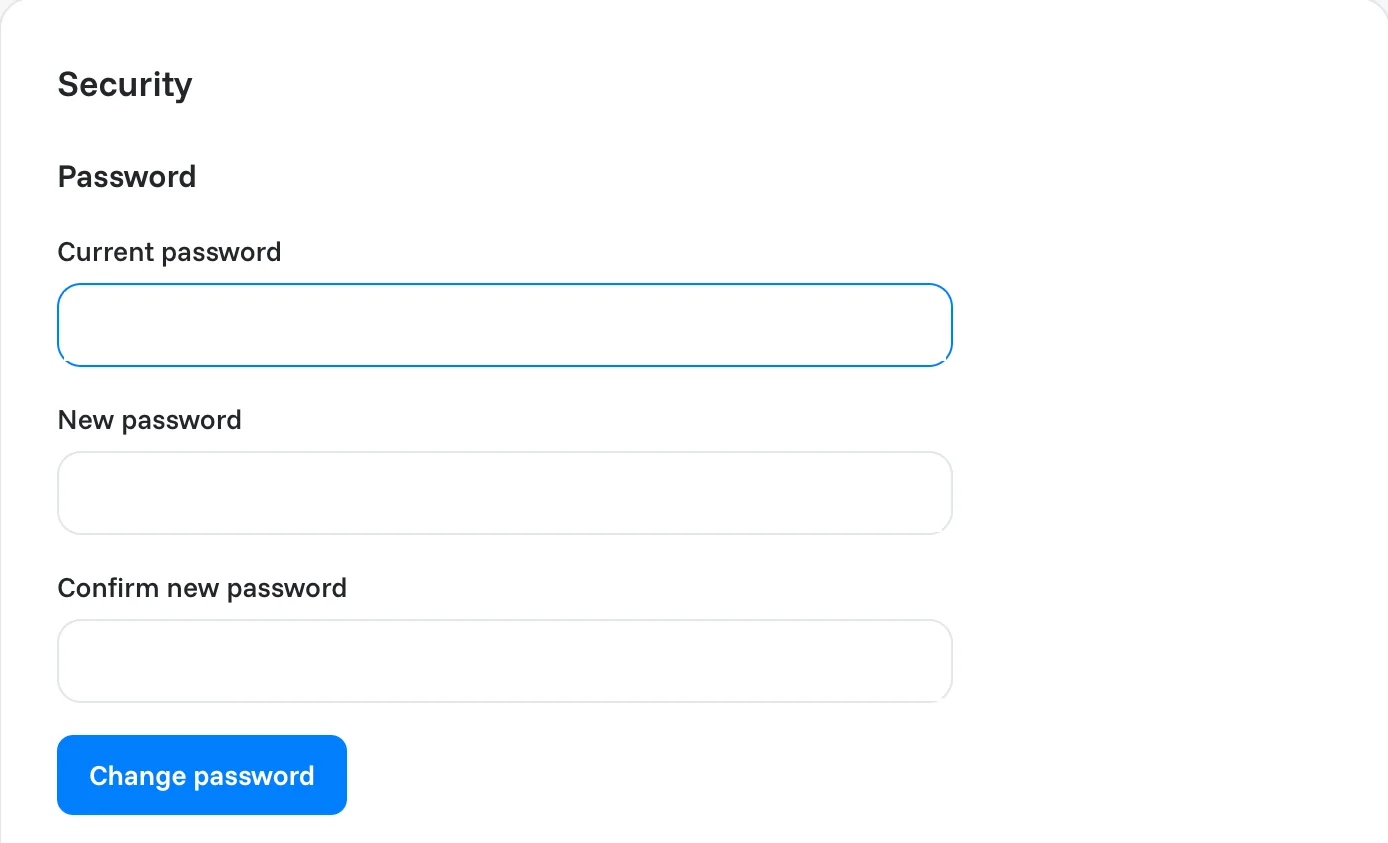
Change your password
- Type your Current password.
- Type the new one under New password and again under Confirm new password.
- Click Change password.
Forgot your password?
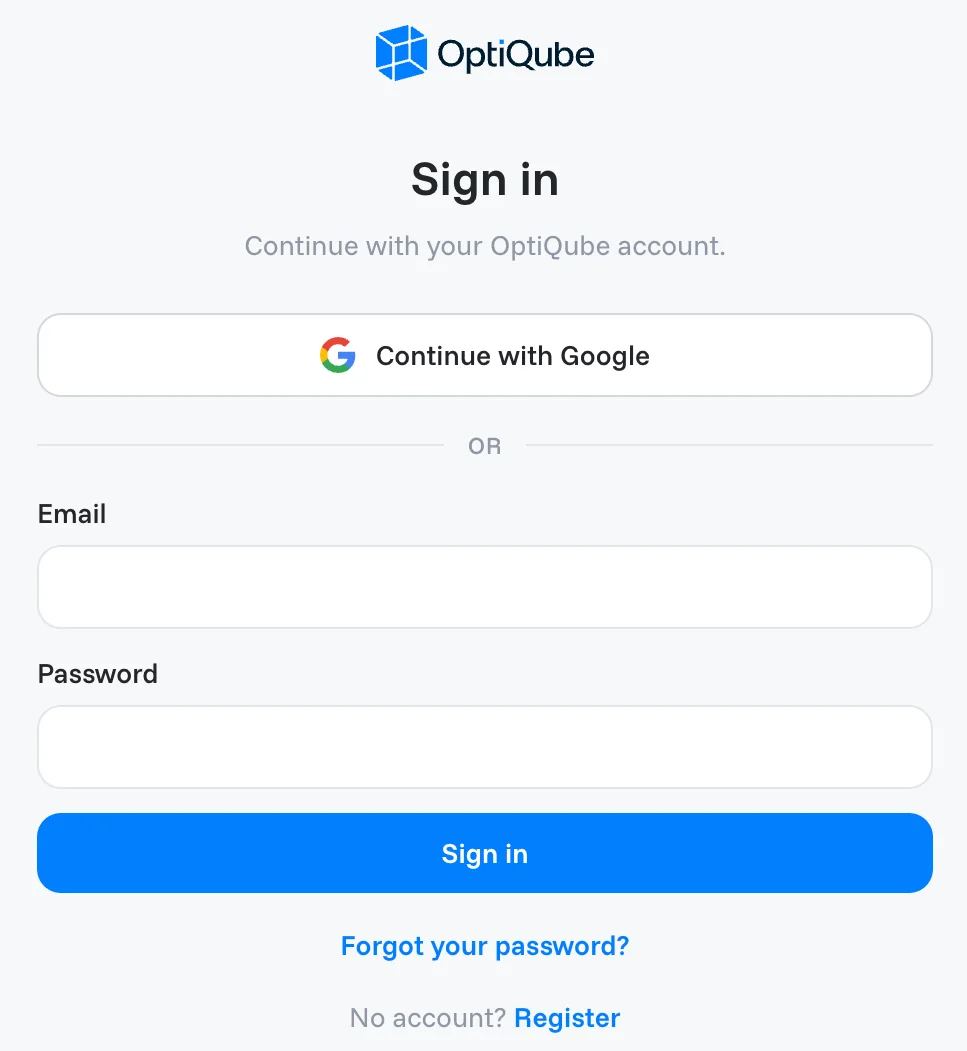
On the sign-in page, click Forgot your password? under the Sign in button. OptiQube emails you a link to choose a new password. This email is always sent, whatever your email settings.
Note
You can also sign in with Continue with Google. New here? Click Register at the bottom of the page.
Change your email address
Your email address is where invoices, catalog alerts and password resets go.
- Under Email address, type the new address under New email.
- Type your Current password.
- Click Send confirmation link.
- Open the email OptiQube sends to the new address and click the link.
Note
The change takes effect only when you click the link in that email. So a typo in the new address cannot lock you out: your old address keeps working until then.
Under Current email you see the address in use, and whether it is Confirmed.
Related articles
Still need help?
Our team answers every message.