
Invite your team
Give colleagues their own login to your OptiQube account.
Invite colleagues so they can work in your OptiQube account with their own login. Only the account owner can invite and remove members.
What to do
- Go to Settings → Users and click Invite user. While you are the only member, you can also click Invite your team at the bottom of the New task screen; it disappears after the first invite.
- Type your colleague's Email address.
- Click Send invitation.
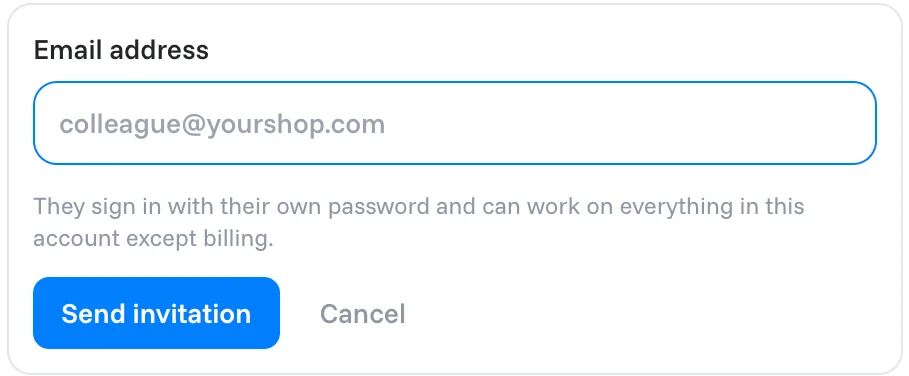
Your colleague gets an email that tells them how to join. They sign in with their own password.
What teammates can do
Teammates can work on everything in the account except billing and managing the team: tasks, campaigns, stores, Brand DNA and product sources.
Note
Plans, payments and invoices, and inviting and removing members, stay with the account owner.
See who has access
Settings → Users lists everyone on the account with their Role, the date they Joined and when they were Last active. The person who created the account is the Owner.
Related articles
Still need help?
Our team answers every message.