
Stores and domains
Add another store to your account, and switch between your stores.
Each store you run ads for is a domain in OptiQube, with its own Brand DNA, tasks, campaigns and product sources. Adding domains is free; your plan only limits feed slots.
Switch between stores
Click the store name in the top-left corner and pick another store under Your stores. Everything you see, from tasks to campaigns, belongs to the selected store.
Add a store
- Click the store name in the top-left corner → + Add domain. Or go to Settings → Domains and click Add domain.
- Under Which domain should we create ads for?, type your store's address, for example
yourbrand.com. - Press Enter.
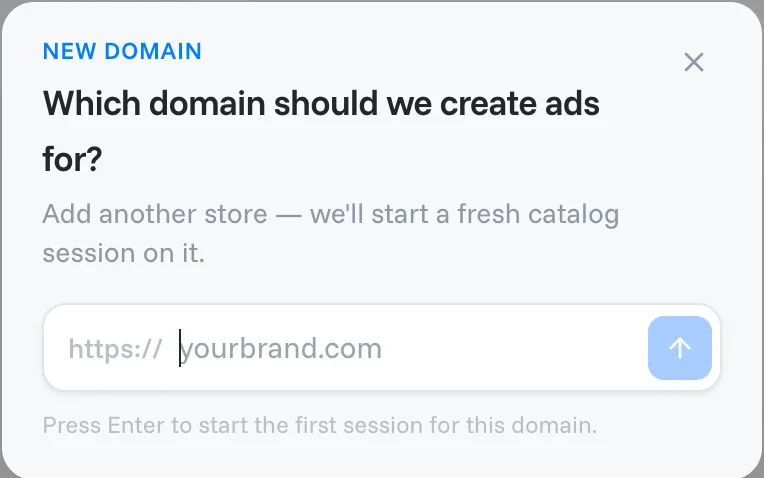
OptiQube then starts the first catalog session for the new store. Check the new store's Brand DNA once it is ready.
All your stores
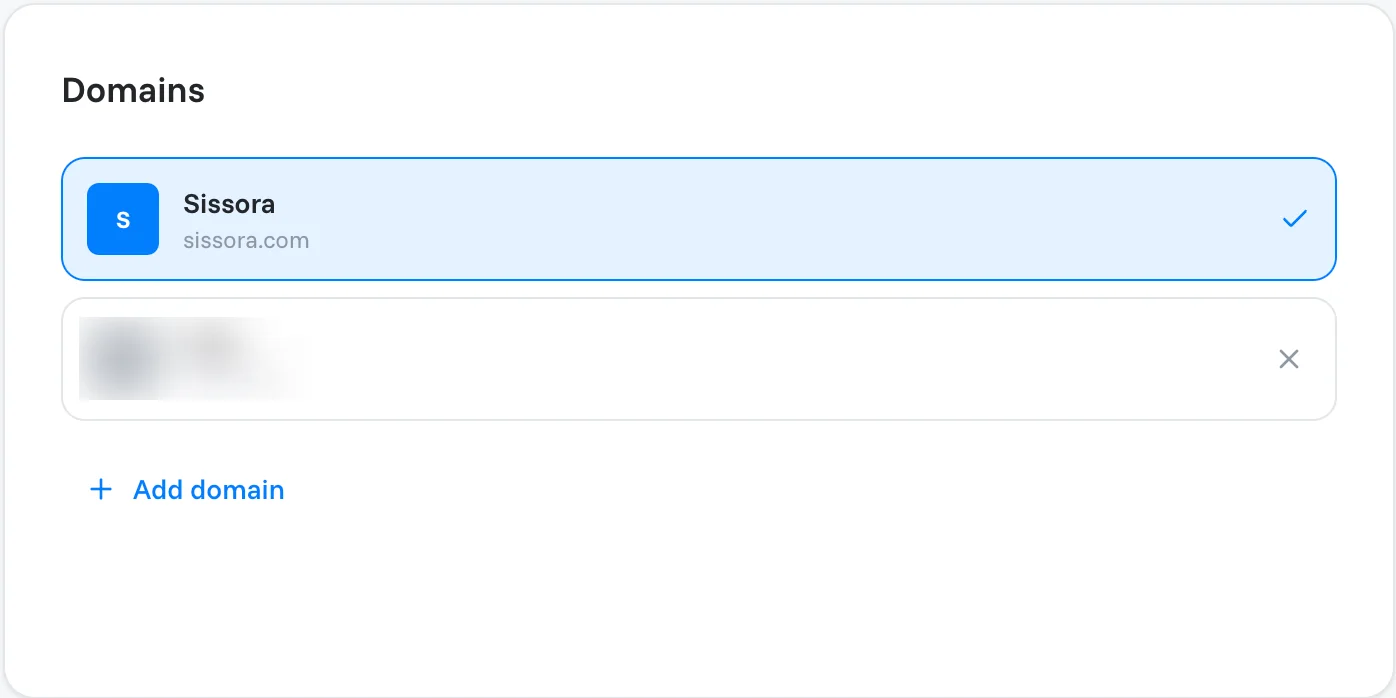
Settings → Domains lists every store on your account. The selected store has a check mark.
To remove a store, hover over it on Settings → Domains and click the × that appears. The selected store has a check mark instead. This only removes the store from the list; it does not free its feed slot.
Watch out
Each store uses a feed slot the first time it connects a product feed, and disconnecting does not free it. See Product sources and feed slots.
Related articles
Still need help?
Our team answers every message.