
Step 4 of 8
Refine a direction
Open the direction you like best and tell the agent what to change, in plain words.
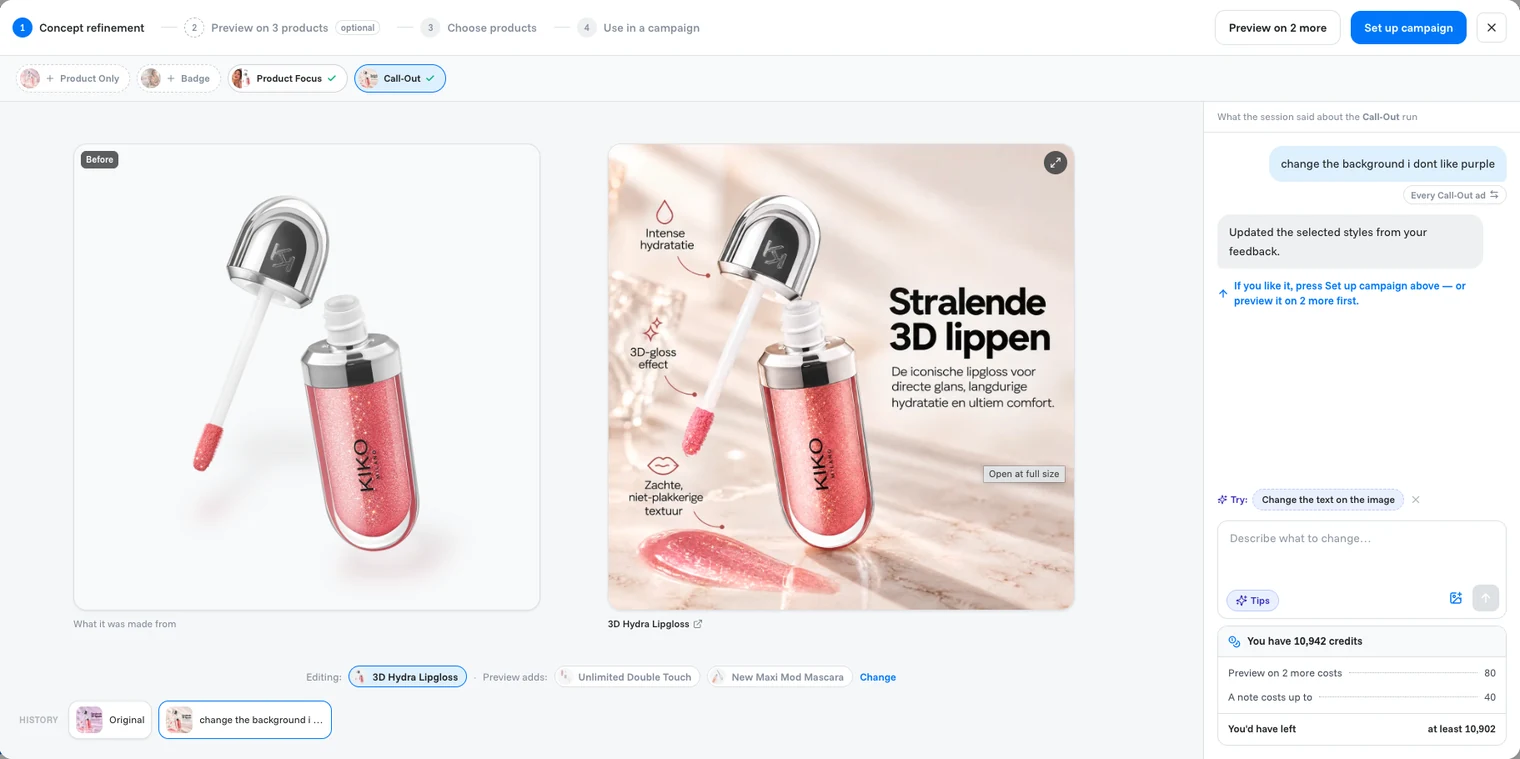
Clicking a direction opens it in a larger view with four steps along the top: Concept refinement, Preview on 3 products (optional), Choose products and Use in a campaign. You start in the first one: the original product photo (What it was made from) on the left, the creative on the right, and the conversation on the right edge.
What to do
Click the direction you like best.
Compare the original product photo (Before) with the generated creative.
Type what you want changed in the box on the right, such as "Put the logo bottom right.", and send it. Or click one of the suggestions under Try, for example Add the store logo.
Wait for the new version. It replaces the creative, and the conversation on the right confirms the update.
Go back to an earlier version
Every change you ask for is kept under History, below the image. Click Original or any earlier change to preview it; click Keep this version to go back to it.
Watch out
Going back drops the changes made after that version. The agent confirms it: "Back to the original version — the requests after it are dropped."
Tip
The chips above the image (for example + Product Only, + Badge) switch this view to another direction.
Note
A note costs up to 40 credits on one product. The box under the message field shows your balance and how much you would have left.
Done when
the creative looks the way you want it.
Still need help?
Our team answers every message.