
Tasks and sessions
How a task works, what is on the session screen, and how to find, rename and archive your tasks.
Everything you create in OptiQube starts in a task: a conversation with the agent about one catalog campaign. The screen where that conversation happens is called a session. You can leave a session at any time and pick it up later where you left it.
Ways to start a task
+ New task in the sidebar, then describe what you want. See Start a new task.
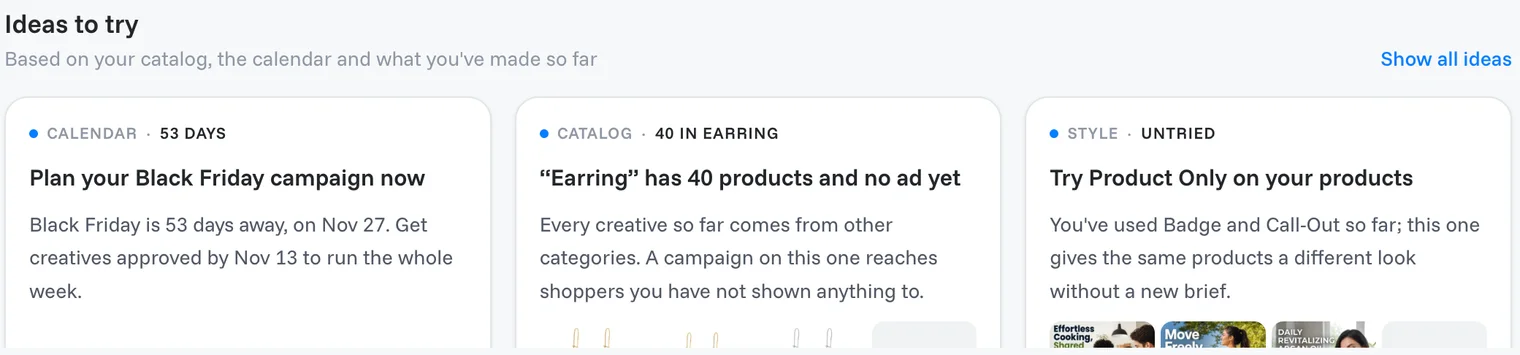
Ideas to try on the New task screen. These are suggestions from the calendar, your catalog and your own campaigns: an upcoming season (Plan your Black Friday campaign now), a category with no ad yet (“Earring” has 40 products and no ad yet), or a style you have not tried (Try Product Only on your products). Click Show all ideas for the full list, or Not now to hide one.
Use this style on any style in the Inspiration library.
Copy an ad, to rebuild an ad you like in your own brand. See Copy an ad you like.
The session screen
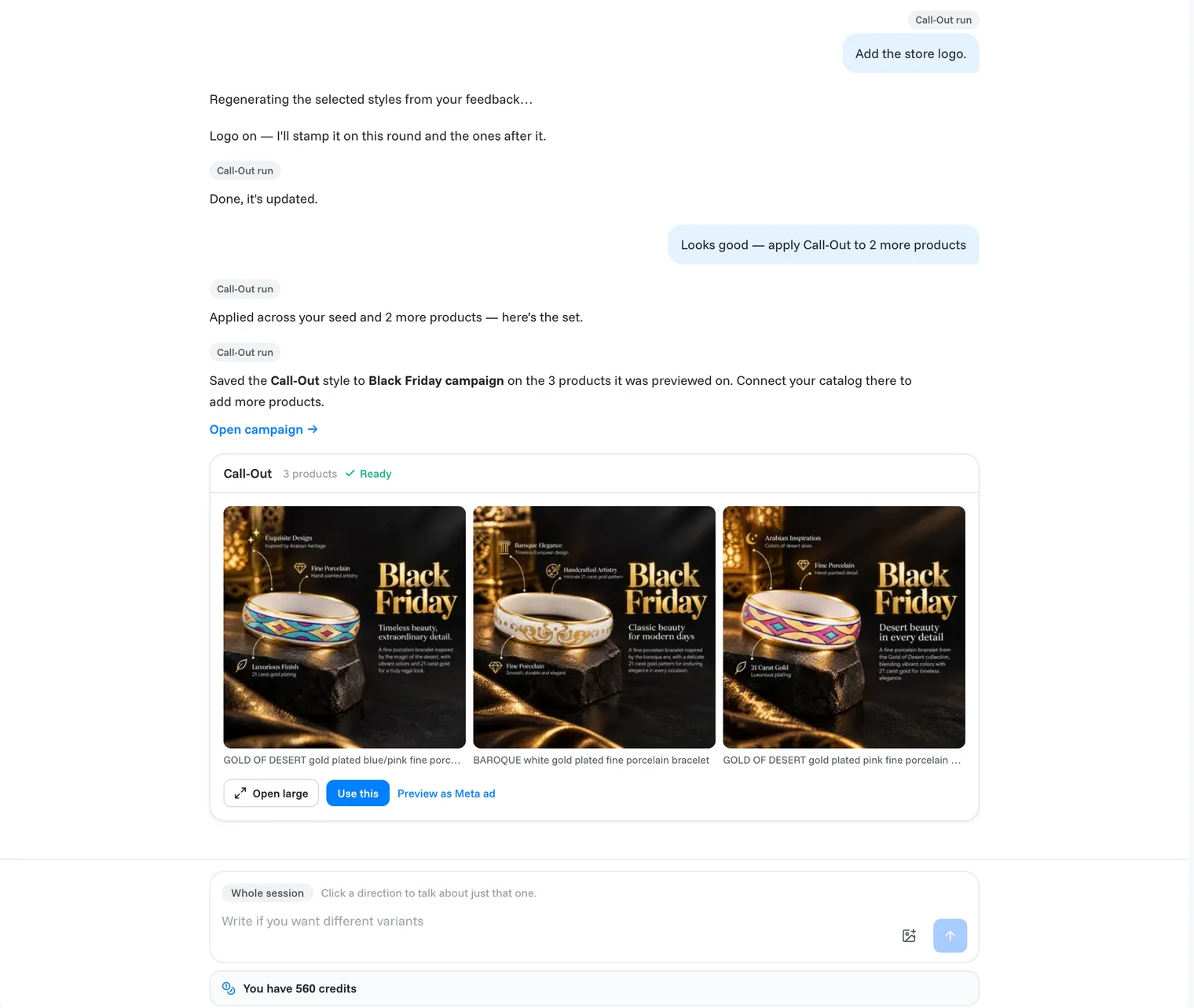
The conversation shows your messages, the agent's questions and each round's results.
Direction cards appear in the conversation as each direction finishes. Click a direction to talk about just that one.
The message box at the bottom. The chip above it shows what your message applies to: Whole session, or a single direction's run. Remove the chip to talk to the whole session again.
The credits bar under the message box shows your balance and the credits held for rounds that are still running.
While a round is running, you can already type a note; it stays in the message box, and you send it when the round ends. The stop button cancels the round.
Direction cards
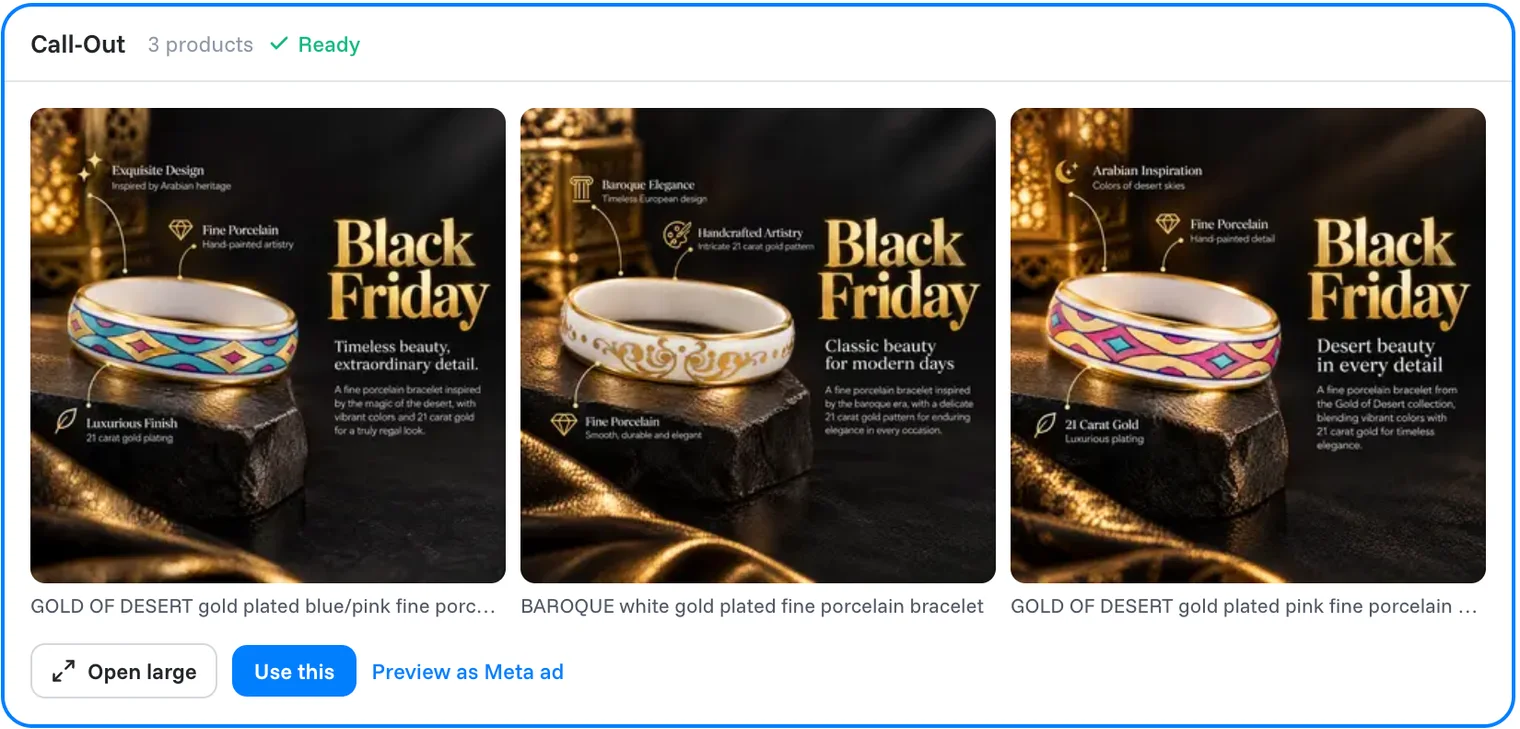
Each finished direction has a card with its images and buttons, including:
Open large opens the direction in the large view, where you refine it and roll it out. See Refine and regenerate creatives.
Preview as Meta ad shows how the creatives look in several Facebook and Instagram placements.
Find, rename and archive tasks
Your tasks are listed under Recents in the sidebar.
- Click the ⋯ next to a task to Rename or Archive it.
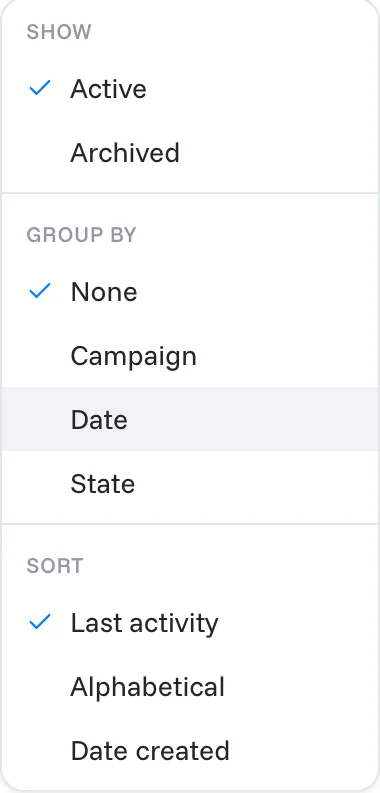
- Click the icon next to Recents to change the view:
- Show: Active or Archived tasks. Archived tasks are not deleted; you find them here.
- Group by: None, Campaign, Date or State.
- Sort: Last activity, Alphabetical or Date created.
Related articles
Still need help?
Our team answers every message.