
Browse your products
See every product OptiQube read from your sources, and filter by stock, category, brand and more.
Once a product source is connected, click Products in the sidebar to see everything OptiQube read from it. The top line shows how many products there are across your catalog, and how many have an image.
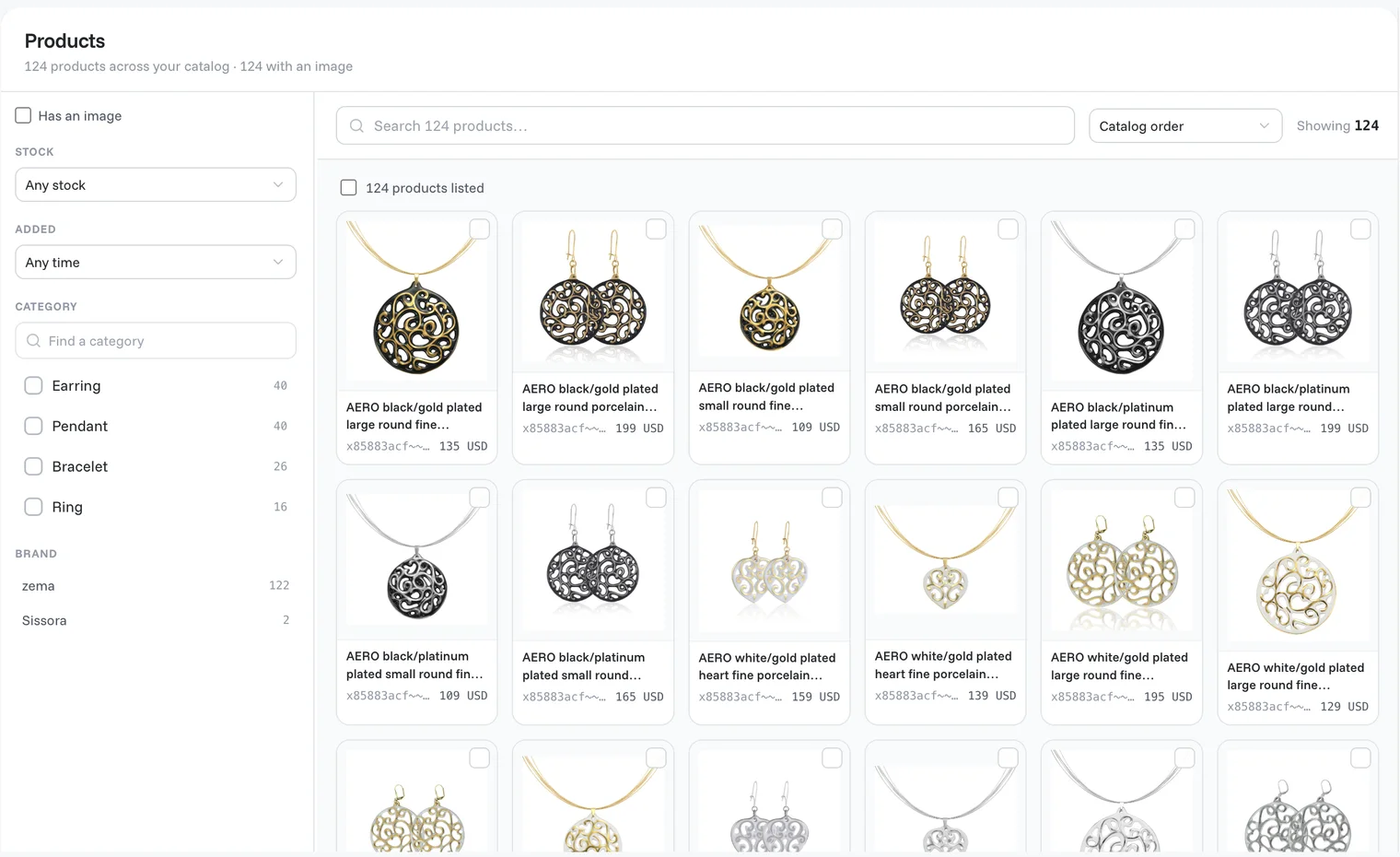
Find products
- Search by product name at the top.
- Sort with the menu on the right, for example Catalog order. Showing tells you how many products match.
Filter with the panel on the left:
| Filter | What it does |
|---|---|
| Has an image | Shows only products with a picture. Products without one cannot get creatives. |
| Stock | Filters by stock state, for example Any stock. |
| Added | Shows products added in a period, for example Any time. |
| Category | Your shop's categories with their product counts. Type in Find a category to search them. |
| Brand | The brands in your catalog with their product counts. |
Each product card shows its picture, name, ID and price.
Select products
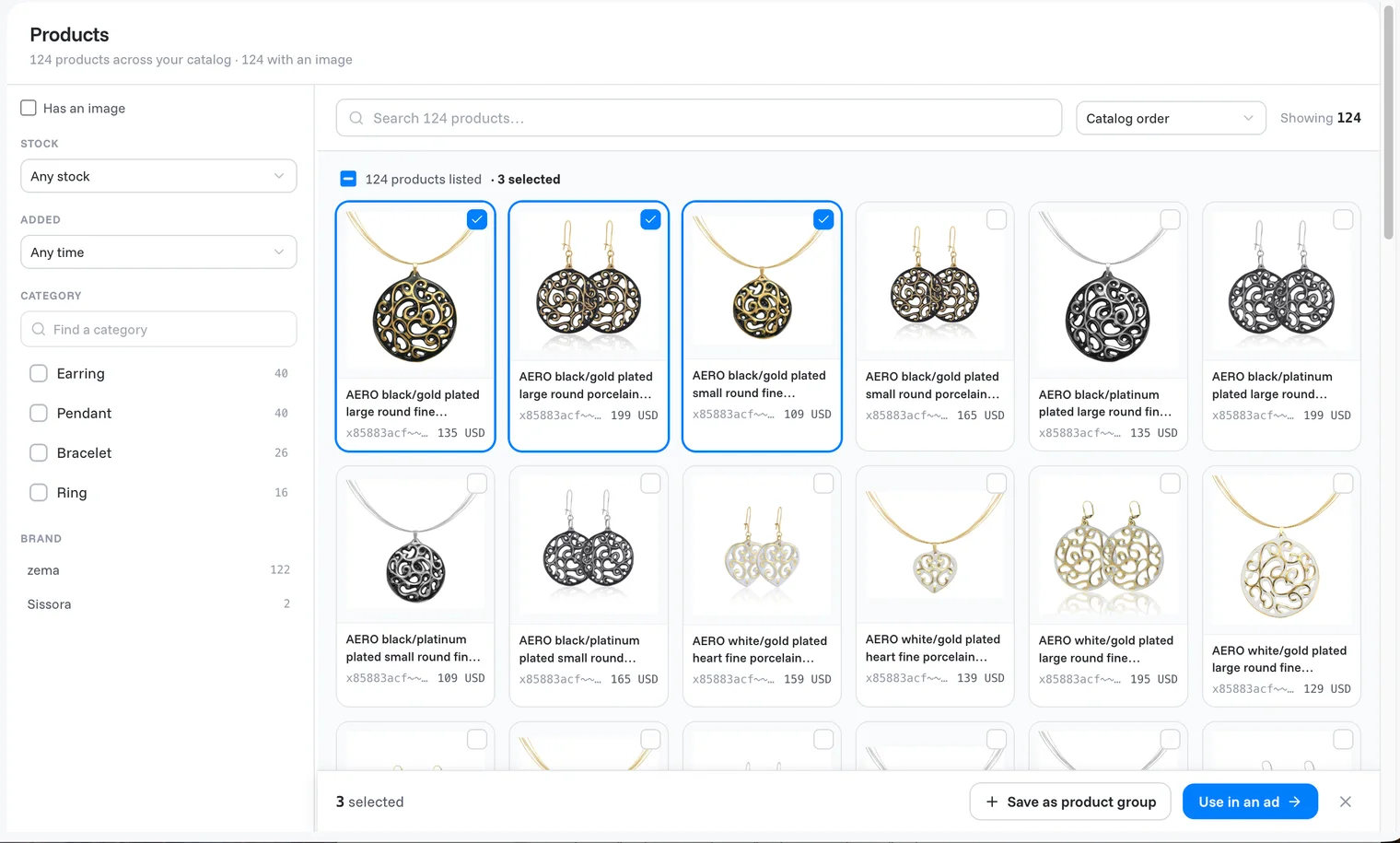
Tick the box on a product card to select it, or the box next to products listed to select them all. A bar appears at the bottom with the number selected and two actions:
- Save as product group: keeps the selection as a group you can come back to.
- Use in an ad: takes the selected products into an ad.
Click × on the bar to clear the selection.
Tip
OptiQube uses this catalog in your tasks: when the agent asks which product to feature, it offers products from here, and Browse my catalog opens the full list. Ideas to try also points out categories that have no ad yet.
No products here? Connect a source first: Product sources and feed slots.
Related articles
Still need help?
Our team answers every message.