
Step 1 of 8
Set up your store and Brand DNA
Pick the store you are working on and check what OptiQube learned about your brand.
In OptiQube every store is its own workspace. Your campaigns, creatives and product sources all belong to the store you pick in the top-left corner. For each store, OptiQube reads your website and builds a Brand DNA: your colours, fonts, style and tone. Every creative starts from it.
What to do
- Click the store name in the top-left corner. The Your stores list opens.
- Pick your store. If it is not in the list yet, click + Add domain and type your website's address.
- In the same menu, click Brand DNA.
- Check what OptiQube read from your site and correct anything that is off.
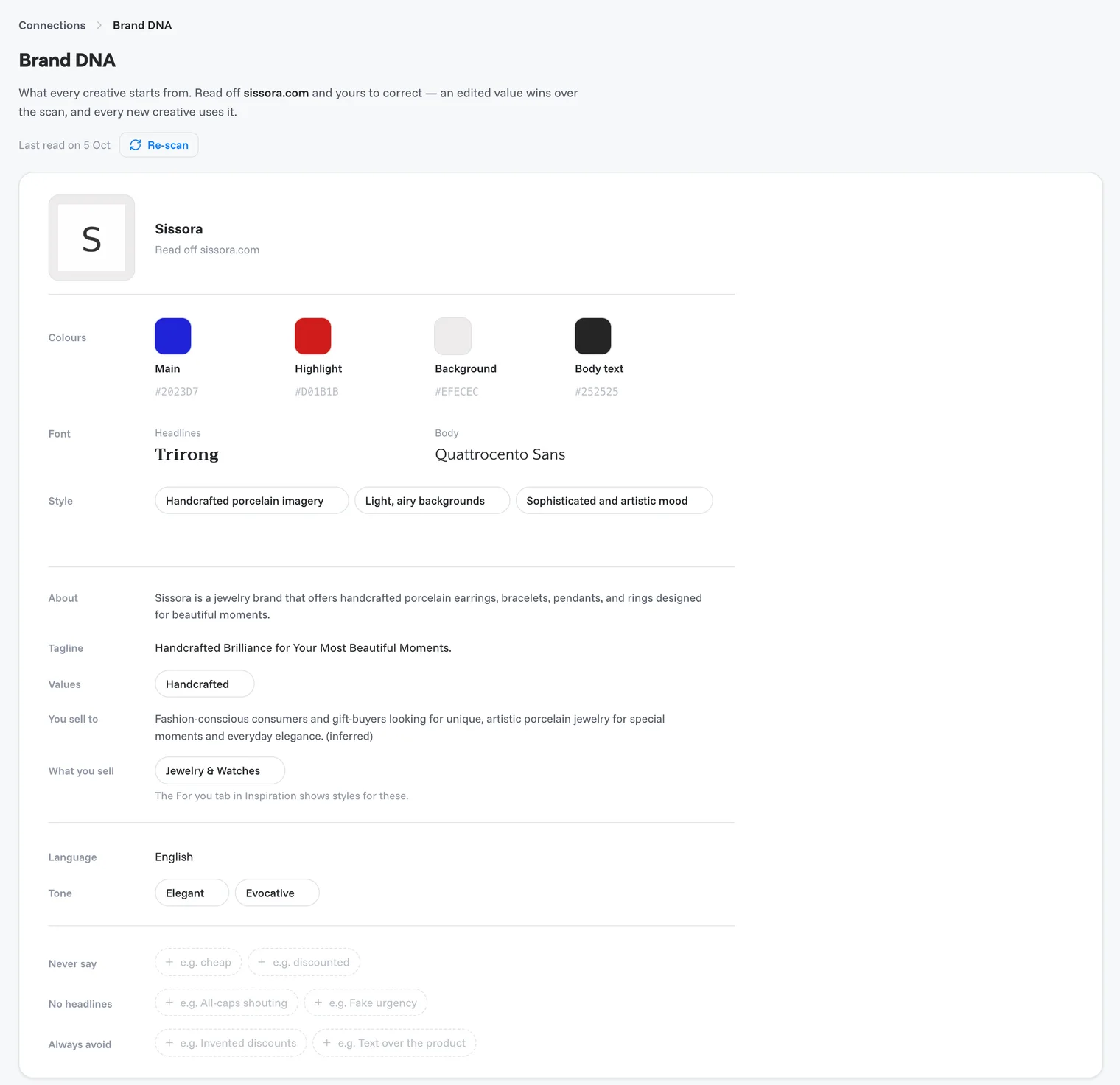
What is in your Brand DNA
| Section | What it holds |
|---|---|
| Logo and brand name | Click Upload logo if your logo is missing. You can add a second logo too. Creatives get your logo automatically. |
| Colours | Main, Highlight, Background and Body text colours. Click Add for more. |
| Font | The fonts used for headlines and body text. |
| Style | A few words that describe your look, such as "Bold and modern". |
| About, Tagline, Values | What your brand stands for. |
| You sell to, What you sell | Your audience and product range. This decides which styles the Inspiration library shows you first. |
| Language and Tone | The language of your ad copy and how it should sound. |
| Never say, No headlines, Always avoid | Words, headline types and visual choices that creatives must never use. |
Tip
An edited value always wins over what OptiQube read from your site, and every new creative uses it. Fill in Never say and Always avoid early: for example "cheap" or "Invented discounts".
Note
Changed your website? Click Re-scan at the top of the page to read it again. The date next to it shows when OptiQube last read your site.
Done when
the right store is selected and its Brand DNA matches your brand.
Still need help?
Our team answers every message.