
Step 6 of 8
Save it as a draft campaign
Turn your creatives into a campaign you can review, edit and later activate on Meta.
A campaign collects your approved creatives in one place, organised as campaign → ad set → ad. It starts as a draft, so nothing goes live and nothing is spent until you decide.
What to do
- In the preview, click Set up campaign.
- If you have not connected your product catalog yet, OptiQube asks you to connect one. You can do it now, or click Not now — save it as a draft campaign. Your style is saved either way.
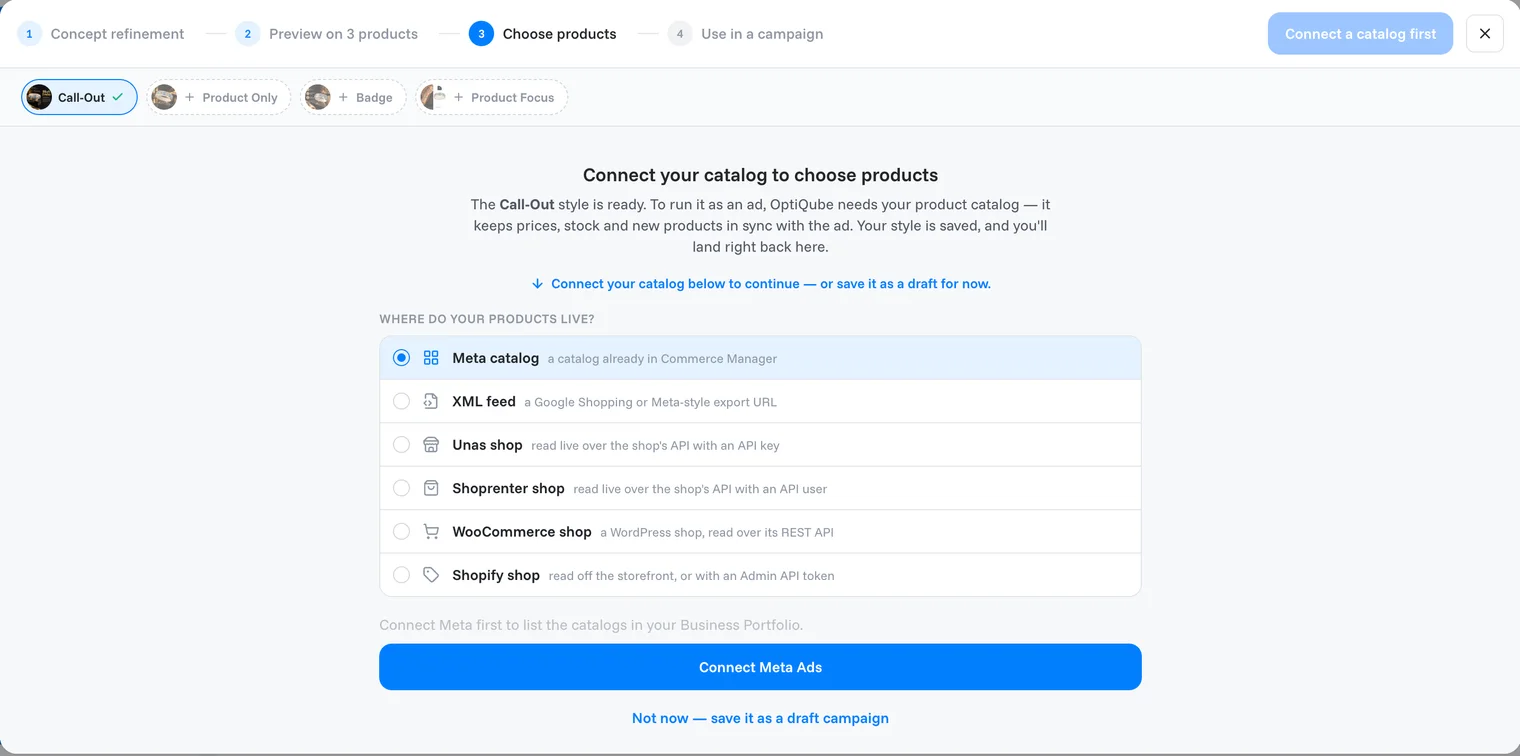
- Choose whether to add the style to an existing campaign or to create a new one.
- Your campaign opens. The banner reads Your campaign draft is ready.
What is on the campaign page
- Spend, Impressions, Link clicks, CTR (link), ROAS: these fill in after your ads first run on Meta.
- Ad set and ads: click an ad to see its creatives, products and ad copy.
Click the pencil icon next to a name to rename the campaign, an ad set or an ad.
Check the ad copy
Open the ad and click its Settings tab. You will find a preview of the Facebook catalog ad, on Desktop or Mobile, next to its text:
- Primary text: type your own, or click Suggest.
- Headline:
{{product.name}}is replaced by each product's own name. - Show price and Show product name: switch them on or off.
- Ask for a change: describe a change to the creatives; it is used the next time you click Regenerate all.
Note
On desktop, the launch card's Set up on Meta button sends the campaign to Meta; the last step is Create paused campaign. You need a paid plan, every creative approved and a pixel, otherwise it won't start. The campaign goes up paused, so nothing spends until you start it there.
See Activate a campaign on Meta for the steps.
Done when
your campaign is listed under Campaigns with the status Draft.
Related articles
Still need help?
Our team answers every message.