
Connect Meta Ads
Link your Meta Business Portfolio and ad account to OptiQube, step by step.
Connecting Meta links your Business Portfolio and ad account to OptiQube. You can make creatives without it; you need it for live results.
What it unlocks:
- Live KPIs: Spend, Impressions, Link clicks, CTR (link) and ROAS on your campaign pages.
- Meta catalogs as a product source. See Connect a Meta catalog.
Before you start
- Sign in with a Meta Business user.
- You need Admin (or sufficient) access on the ad account. A personal Facebook profile alone is not enough if your assets live in Business Manager.
Start the connection
Any of these opens the Connect Meta Ads page:
- Click the store name in the top-left corner → Connections → Connect Meta next to Meta Ads.
- On the Product sources page, choose Meta catalog → Connect Meta Ads.
The page walks you through four steps: Sign in, Business, Ad account and Products.
Click Continue with Meta. (Skip leaves it for later.)
1. Log in and give access in Facebook
A Facebook window opens and asks three things.
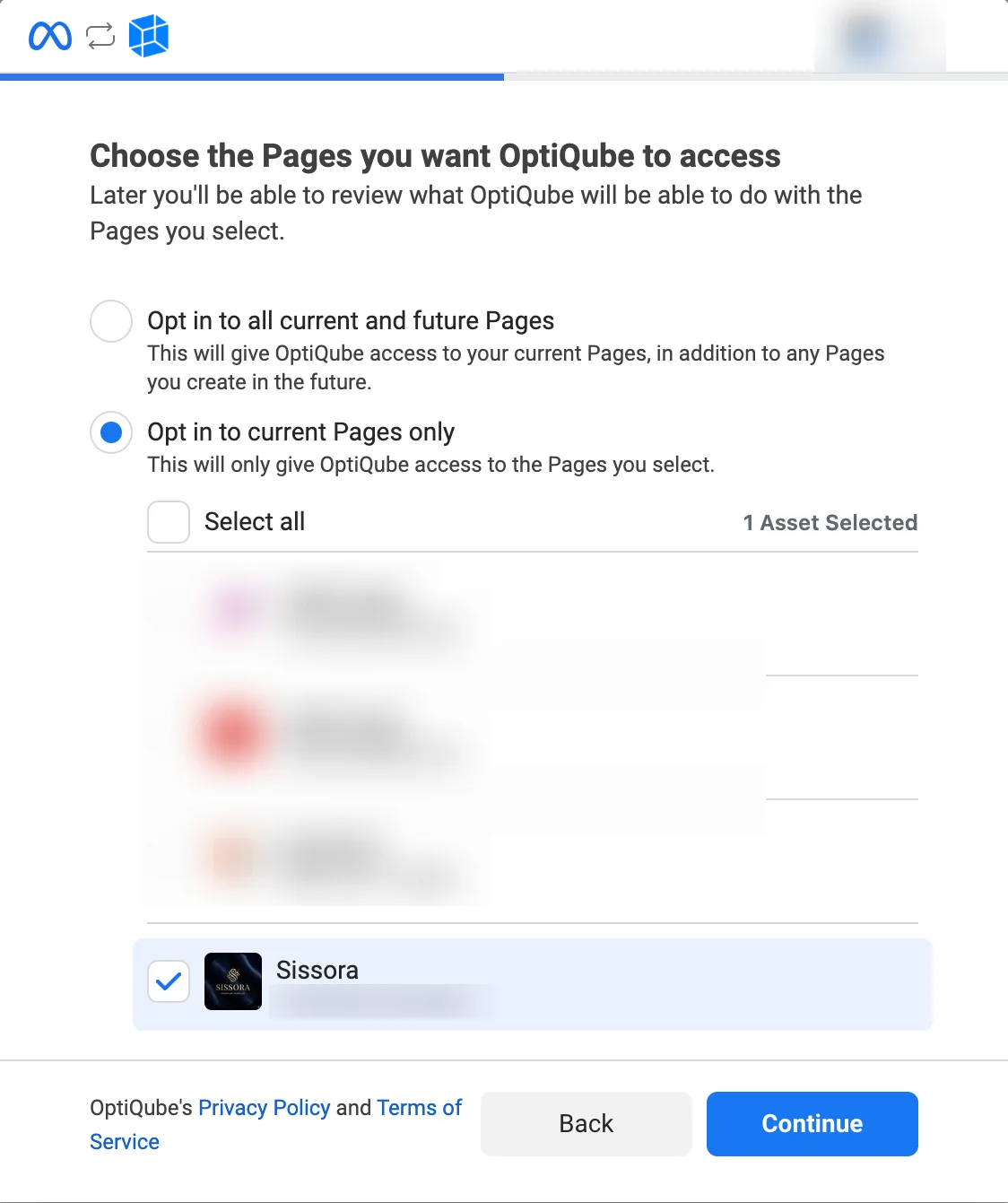
Choose the Pages. Pick Opt in to current Pages only and tick your store's Facebook Page, then click Continue.
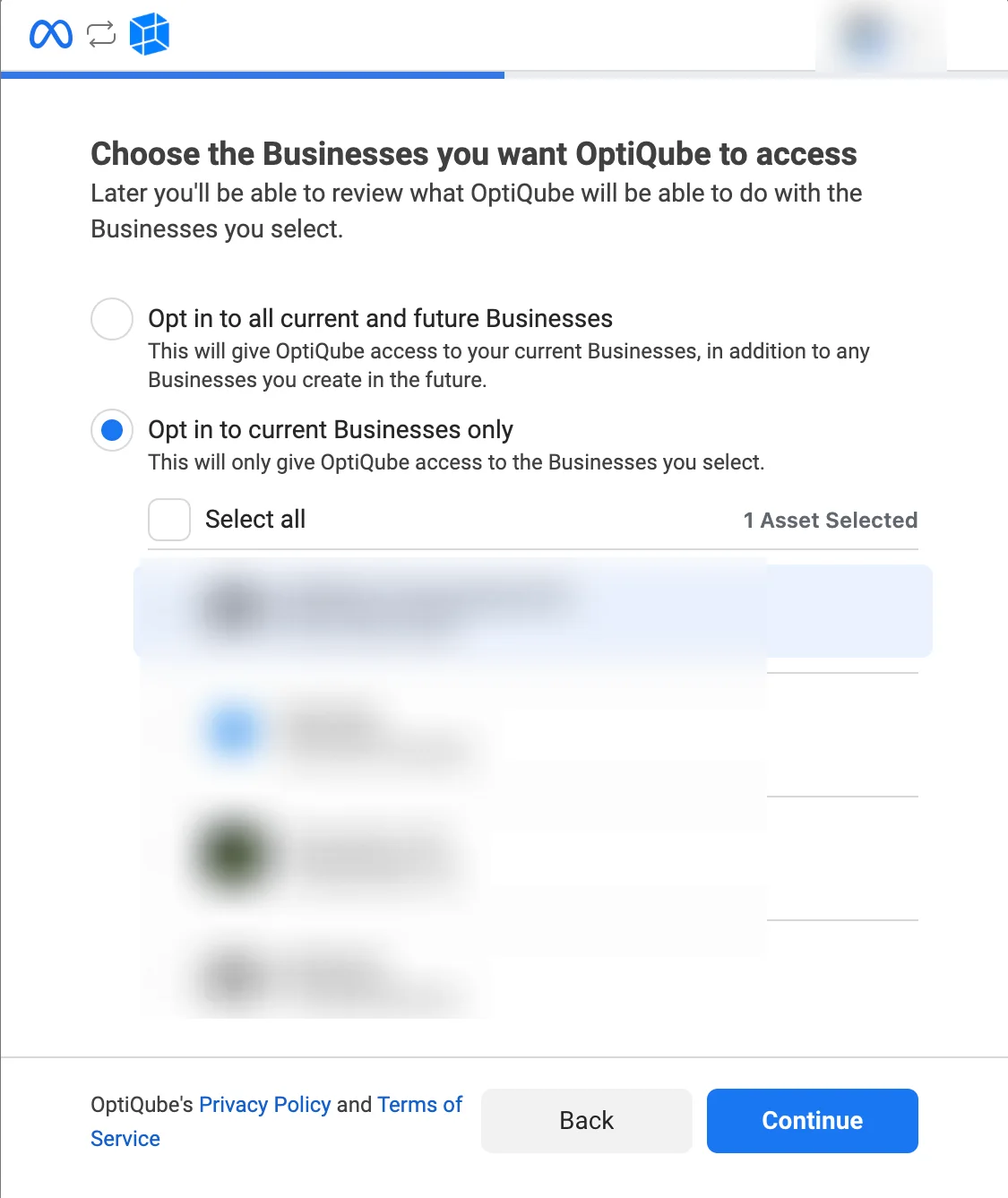
Choose the Businesses. Tick the Business Portfolio that owns your ad account, then click Continue.
Review the access request. Facebook lists what OptiQube asks for, and the Product Catalog Terms. Click Save.
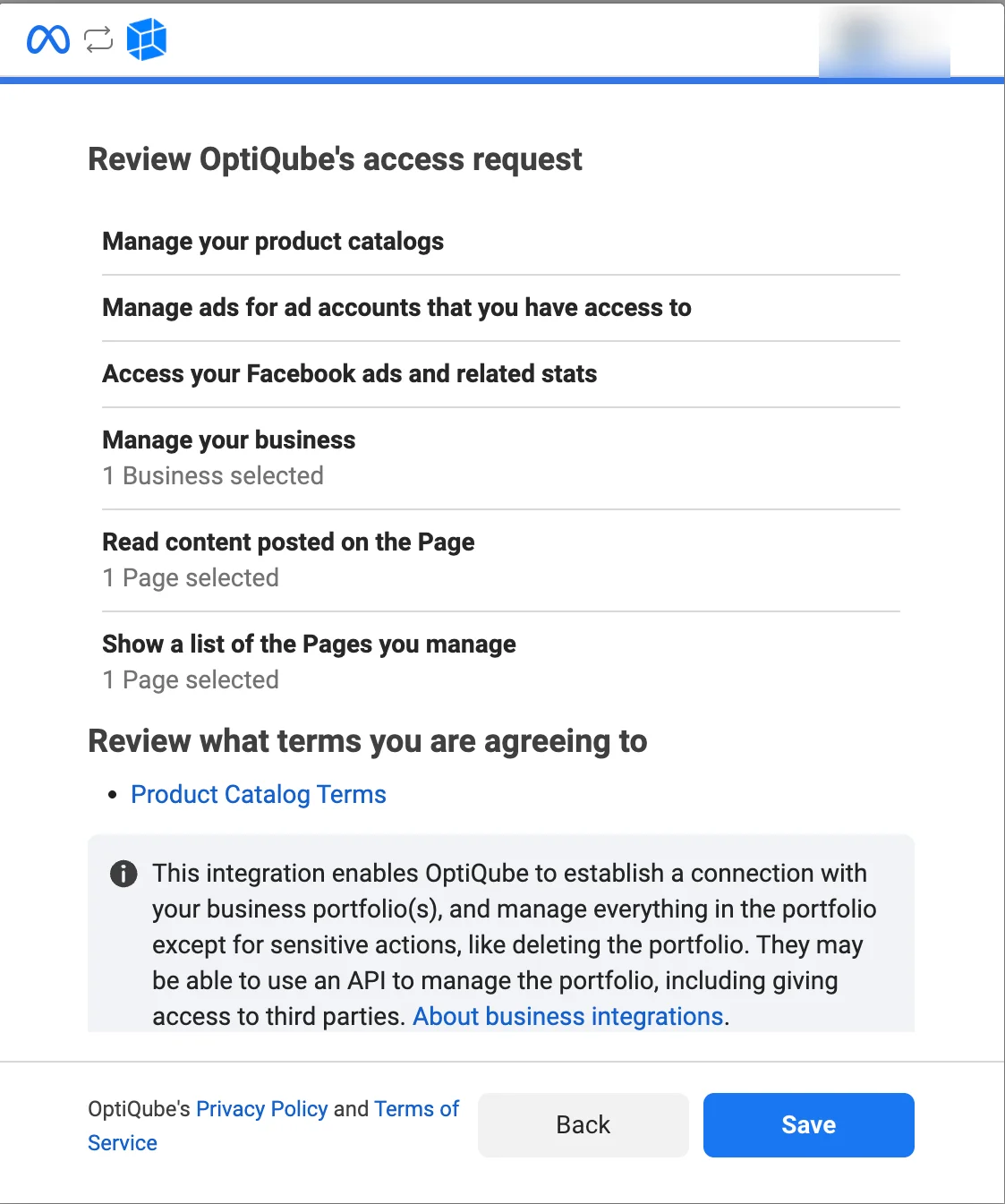
Facebook lists what OptiQube asks for: manage your product catalogs, manage ads for the ad accounts you have access to, access your Facebook ads and related stats, manage the selected business, and read and list the selected Pages.
Facebook confirms that you have been connected to OptiQube. Click Got it. You can review or remove this connection any time in Facebook under Business Integrations.
Tip
Choose current Pages only and current Businesses only, and tick just the ones for this store. OptiQube then gets access to nothing else.
2. Pick the Business Portfolio
Back in OptiQube, under Choose a Business Portfolio, click your portfolio, then Continue. Each one shows its Business ID.
3. Pick the ad account
Under Choose the ad account for your domain, click the ad account for this store, then Connect ad account. Each account shows its ID (starting with act_), currency and status.
4. Choose where your products come from
Under Where do your products come from?, OptiQube shows the product sources you already connected, for example Shopify shop · Sissora · 124 products · 124 with an image. You can add another source here, such as a Meta catalog or an XML feed. This is what bulk creative generation runs on; it is optional, and you can add it later. Click Continue.
Done
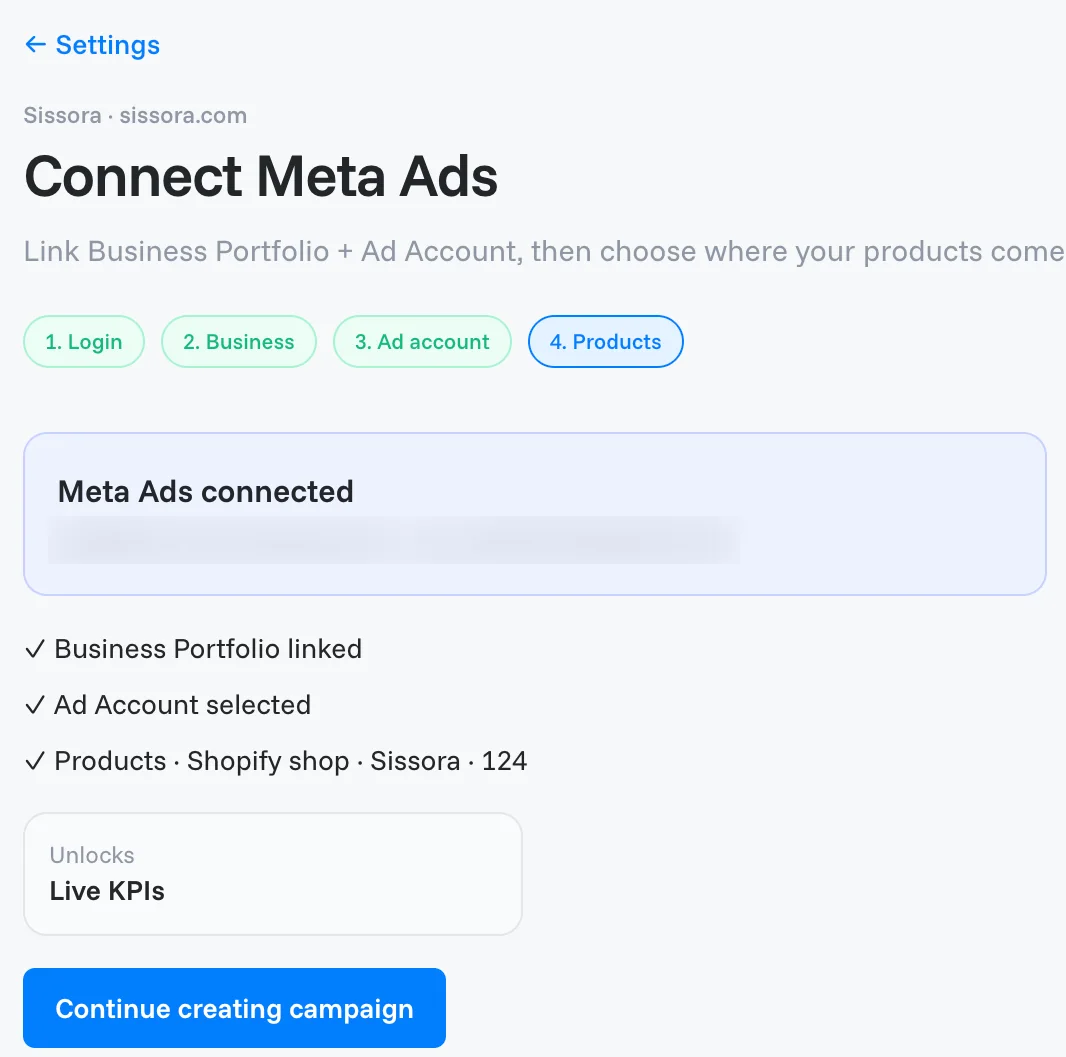
You see Meta Ads connected, with your Business Portfolio and ad account, and a checklist: Business Portfolio linked, Ad Account selected and your products. Click Continue creating campaign if you came from a campaign; otherwise the button takes you Back to Connections or Back to catalog setup.
Done when
the Meta Ads card on the Connections page shows your Business Portfolio and ad account, and results appear after your ads first run on Meta.
Ready to go live? See Activate a campaign on Meta.
Change account or disconnect
Click the store name in the top-left corner → Connections. The Meta Ads card shows the connected Business Portfolio and ad account.
- Change account lets you pick a different ad account.
- Disconnect Meta, in the … menu, removes the connection. To remove OptiQube's access completely, also remove it in Facebook, under Business Integrations.
Related articles
Still need help?
Our team answers every message.