
Usage and credit history
See how many credits you spent, on which tasks, and download the history as a CSV file.
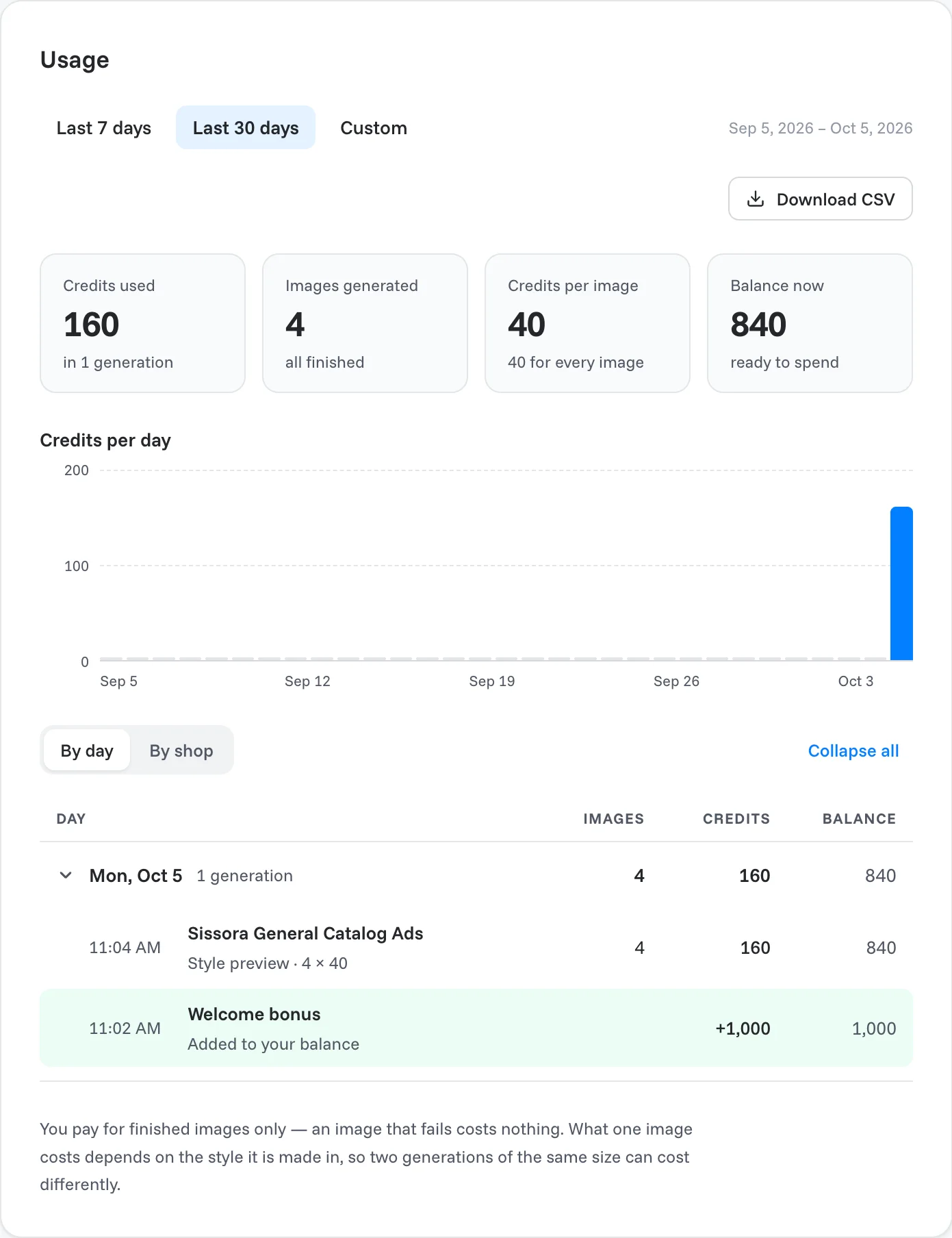
The Usage page shows where your credits went. Go to Settings → Usage.
Pick a period
Choose Last 7 days, Last 30 days or Custom at the top. The dates of the period are shown on the right.
The summary
- Credits used, and in how many generations.
- Images generated, and whether all of them finished.
- Credits per image.
- Balance now: what you have left to spend.
Under it, Credits per day shows a bar for each day.
The history
The table lists every generation. Switch between By day and By shop, and click Expand all to open every day. Each line shows the time, the task, what was made, the number of images, the credits and your balance afterwards.
What the types mean:
| Type | What it is |
|---|---|
| Style preview | The first directions of a task, usually 4 × 40 credits. |
| Catalog images | A style rendered on more products. |
| Edit | A change you asked for in a note. |
Download the history
Click Download CSV to get the history of the selected period as a spreadsheet file, for example for your own reports.
Note
You pay for finished images only; an image that fails costs nothing.
Related articles
Still need help?
Our team answers every message.