
Refine and regenerate creatives
Change creatives in plain words, go back to earlier versions, and regenerate an ad's creatives.
You never edit creatives with design tools in OptiQube. You tell the agent what to change, in plain words, and it renders a new version. There are three places to do it.
1. In the conversation
Type in the message box at the bottom of the session.
- With the Whole session chip, your note applies to the whole task, for example "more lifestyle, less text". The agent redraws the existing directions; it does not add new ones.
- Click a direction first and your note applies to just that direction's run.
2. In a direction's large view
Click a direction (or Open large) to open it with its steps: Concept refinement, Preview on 3 products (optional), Choose products and Use in a campaign.
- Describe the change in the box on the right, or click a suggestion under Try, such as Add the store logo. or Make it festive / Christmas.
- You can attach an image to your note.
- Every change is kept under History, below the image. Click Original or any earlier change to preview it, and Keep this version to go back to it. Going back drops the changes made after that version.
- The chips above the image (+ Product Only, + Badge and so on) switch to another direction.
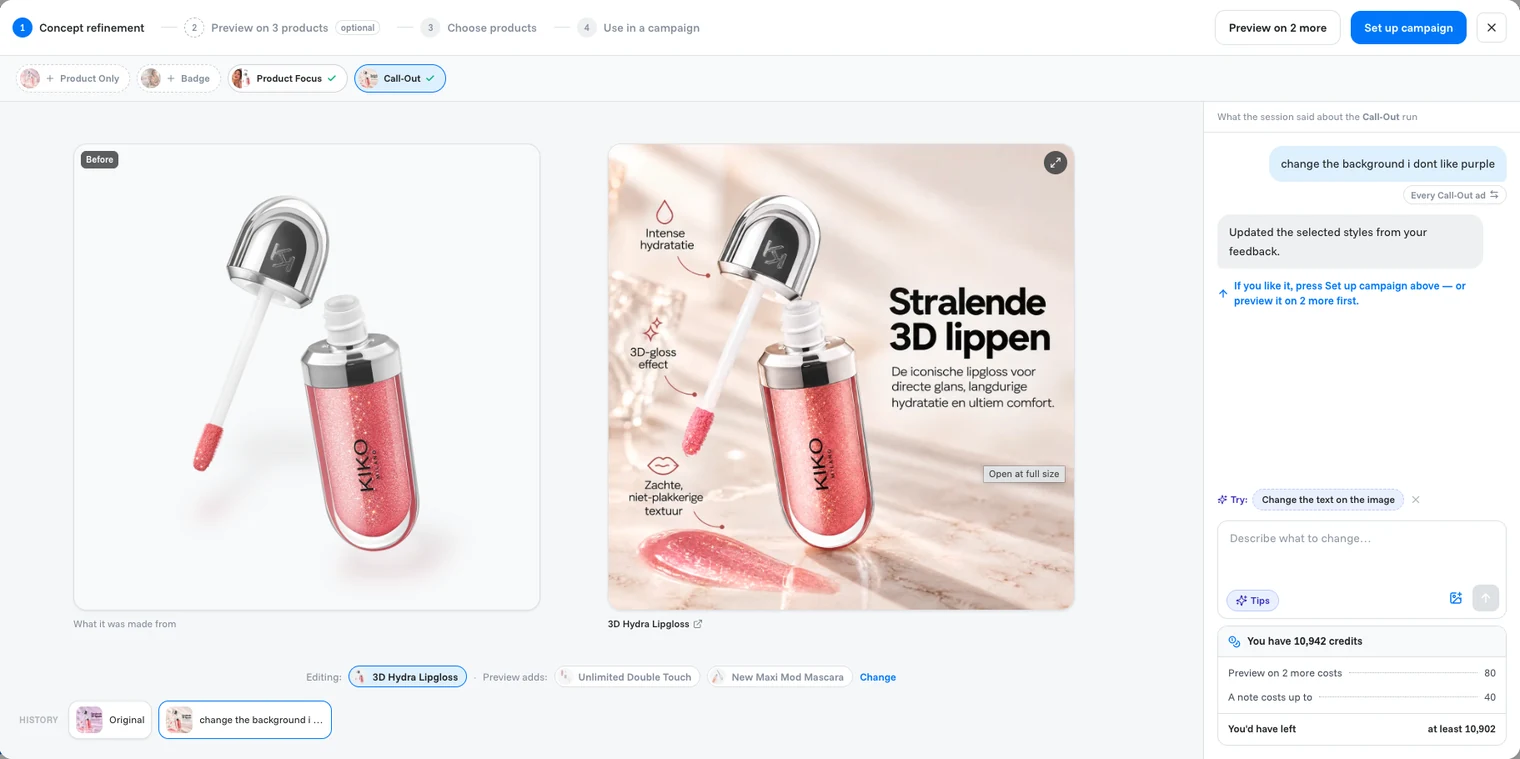
Once you like it, Preview on 2 more renders the style on two more products. Notes you write there apply to all three. Click Change next to Generating on to pick different products. Set up campaign takes the style to a campaign.
3. On an ad in a campaign
Open a campaign and click an ad. Next to the ad preview:
- Ask for a change: describe what to change, for example "Make the badge smaller. Put the logo bottom right." It is applied the next time you click Regenerate all.
- Regenerate all renders every creative of the ad again.
What a change costs
| Where | Cost |
|---|---|
| A note on one product | Up to 40 credits |
| A note on three products | Up to 120 credits |
The credits box next to the message field always shows your balance and what you would have left, before you send. If your balance is too low, it shows how much you are short and offers Upgrade plan on a trial, or Get credits on a paid plan.
Tip
Be specific. "Put the logo bottom right" works better than "make it look better". One change per note makes it easy to step back in History.
Related articles
Still need help?
Our team answers every message.