
Step 5 of 8
Preview on three products
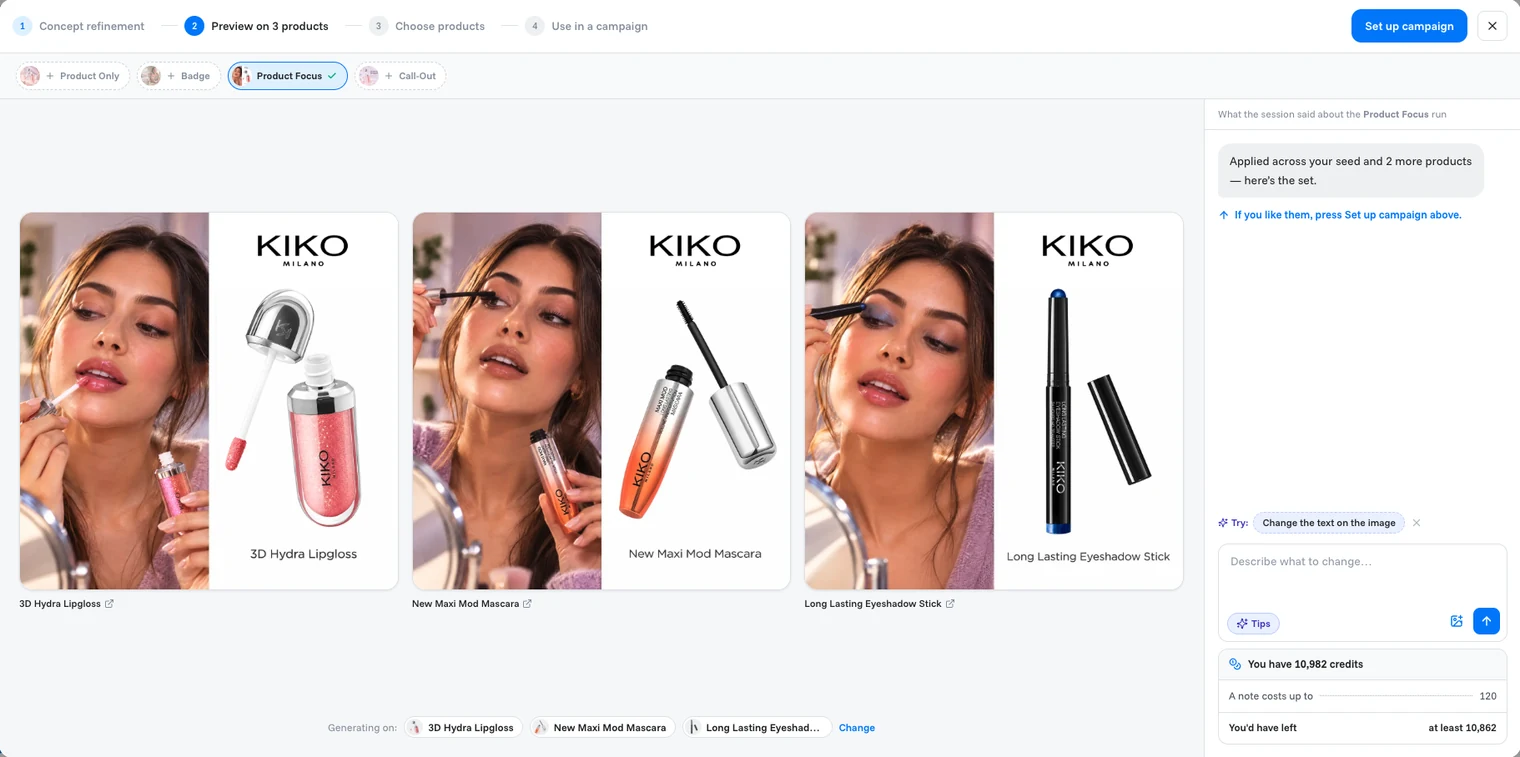
See your chosen style on two more products before you commit to it.
A style that works on one product might not work on another. Before you use it, OptiQube renders it on two more products from your store.
What to do
- In the direction you refined, click Preview on 2 more in the top-right corner.
- The view moves to Preview on 3 products. Each slot fills in as its image finishes.
- Check the three creatives. If something is off, describe the change in the box on the right; it is applied to all three. If your note names one product, only that one is redrawn.
Tip
Want different products in the preview? Click Change next to Generating on at the bottom and pick others.
Watch out
On three products a note costs up to 120 credits (3 × 40). When your balance is too low, the credits box turns red, shows how many credits you are short, and offers Get credits (on a trial: Upgrade plan).
Done when
the agent says "Applied across your seed and 2 more products" and you are happy with all three.
Up next · Step 6Save it as a draft campaign Contact support
Still need help?
Our team answers every message.